Bringing an AI Agent Into Microsoft Teams
AI agents are only useful if people can actually interact with them. A look at connecting an AI scheduling assistant to Microsoft Teams - the adapter service that bridges the two systems, progress updates with Adaptive Cards, and keeping conversation state so "tomorrow" means what the user meant.

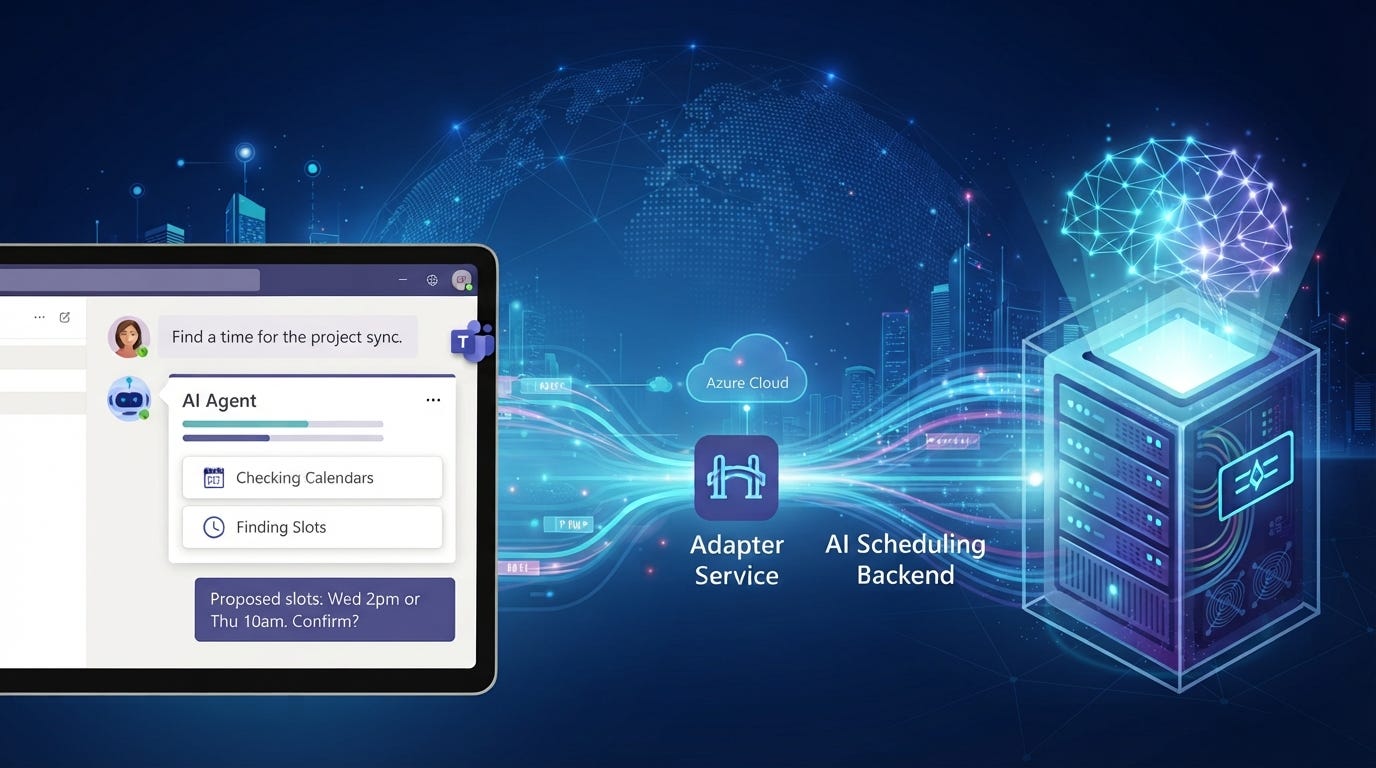
AI agents are becoming more useful because they can do more than just answer questions. They can take actions, use different tools, and work through a task for the user.
But for an agent to be useful, people need an easy way to interact with it.
One project I will be working on is connecting an AI scheduling assistant to Microsoft Teams. The goal is to let users interact with the assistant directly in a Teams chat instead of having to leave Teams and open another application.
01 / The Connection
How does the agent get into Teams?
The scheduling assistant already has a backend that handles things like understanding requests and finding available meeting times. Microsoft Teams cannot connect to that backend on its own.
A separate service acts as the connection. The adapter is responsible for translating messages between Teams and the backend.
The basic flow looks like this:
When a user sends a message, Teams sends it to the adapter through Azure. The adapter then sends the request to the AI backend.
The backend processes the request and eventually sends a response back through the adapter. The adapter then sends that response back to the user's Teams chat.
02 / Progress Updates
AI agents are not always instant
Agents don't always respond immediately.
For example, a scheduling request might require the agent to:
- Understand what the user wants.
- Identify the people involved.
- Check their calendars.
- Find possible meeting times.
- Return the results.
Instead of making the user wait without any feedback, the system can send progress updates while the agent works.
Teams supports this through Adaptive Cards, which allow the bot to show structured information in the chat.
The user could see something like:
✓ Checking calendars…
✓ Finding slots…
Proposed slots: Wed 2pm or Thu 10am. Confirm?
The agent can then send the final answer once it finishes.
03 / Conversation State
Keeping the conversation going
Another important part is the conversation state.
An agent may ask a user a question before it can continue. For example:
"What day works best for you?"
The user might respond:
"Tomorrow."
The system needs to know that "tomorrow" is an answer to the previous question, not a completely new request.
The integration therefore needs to keep track of where the conversation is and pass new messages back to the correct workflow.
This is one of the things that makes AI agents different from a simple chatbot. The agent needs to understand not only what the user said, but also where they are in the conversation.
04 / Why This Matters
Sometimes the work is the bridge, not the AI
An AI agent is only useful if people can actually interact with it. What makes this project interesting to me is that the agent already exists. My work will be focused on connecting it to a new environment and making sure messages, conversation state, and responses move between the two systems correctly.
It's a good example of how working with AI is not always about building the AI itself. Sometimes, it's about building the systems that allow people to use it.
Get AI scheduling insights, product news, and Bay Area community updates delivered to your inbox.
No spam. Unsubscribe anytime.