
User Guide for Microsoft Teams
This section shows how you can use ADI in Microsoft Teams.
Download Free Guide 14 Essential Elements of Team Scheduling Software

Setup Meeting
Effortlessly schedule meetings by simply saying "Adi, Schedule a meeting with @Raj tomorrow" .
Find Time
ADI identifies the best time for you and your colleagues to schedule a meeting, considering availability, priority, etc.
Show Schedule/ Re-Schedule
Simply say, "Move my 1 pm meeting to 3 pm," and ADI adjusts the calendar and notifies participants.
1Get Started
Welcome to the user guide for Adi Bot powered by ANCI. Come take a closer look!
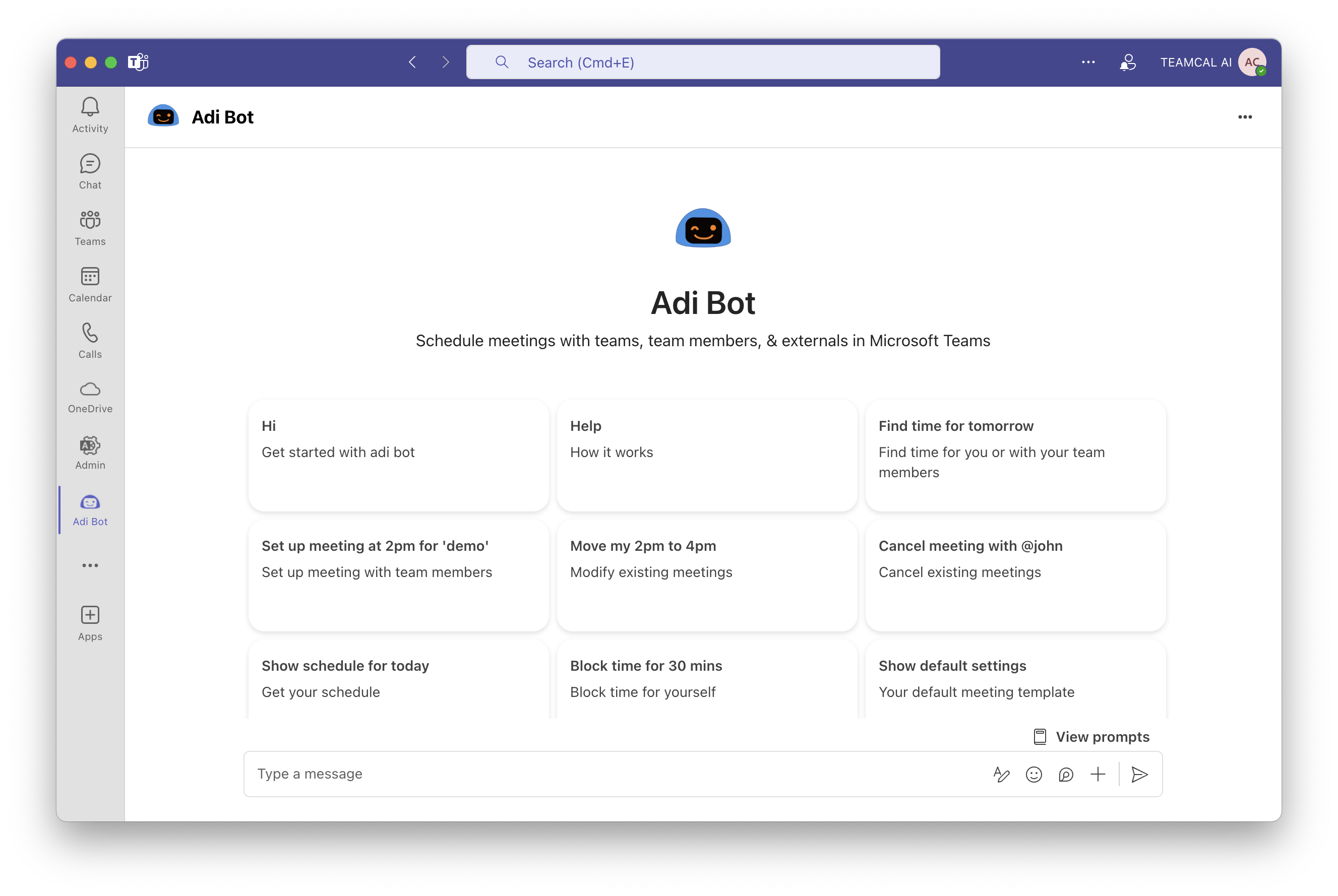
Free Install from Microsoft Market place Install here. Check the Adi for Microsoft Teams.
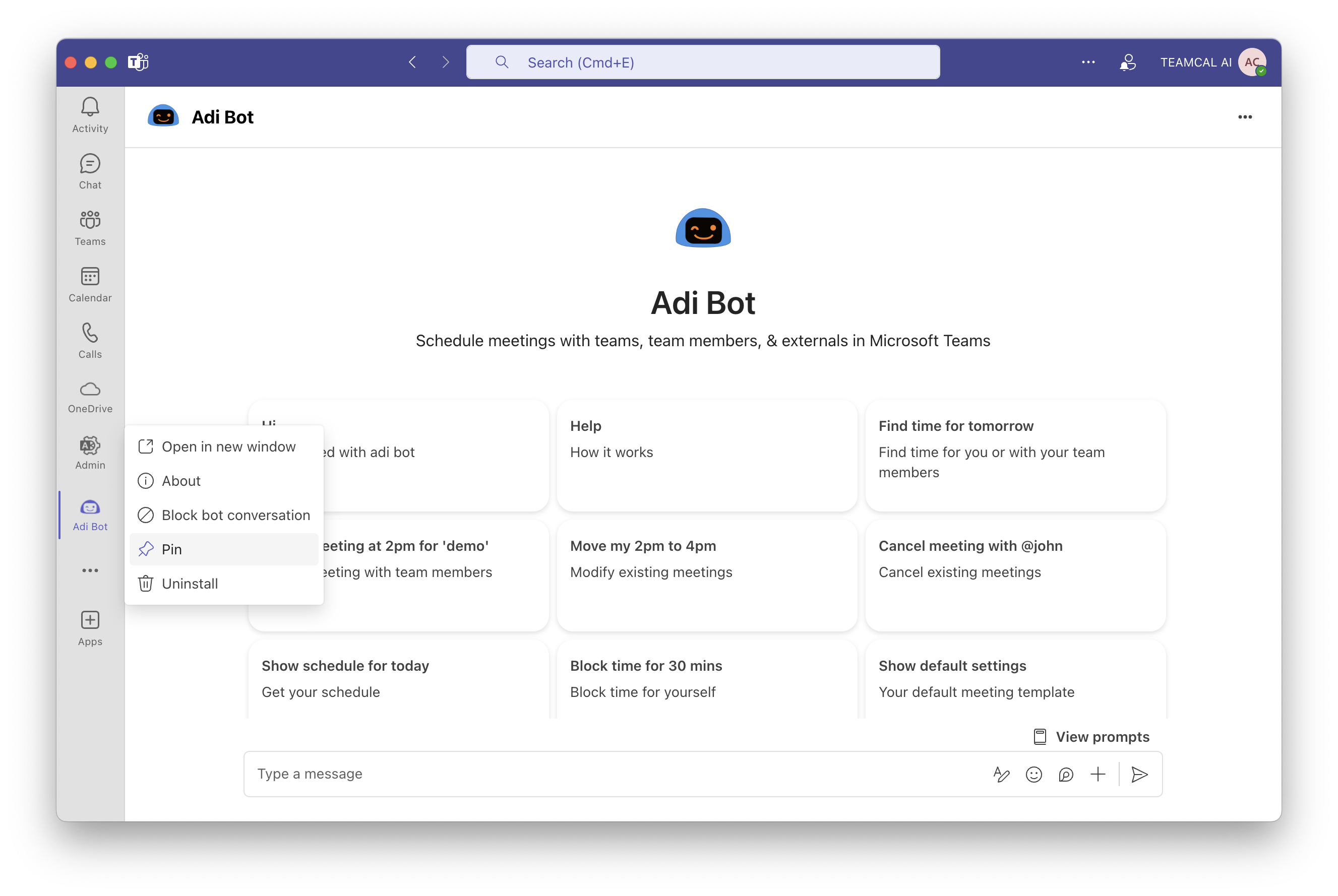
2Adi in the Sidebar
Pin Adi Bot to your sidebar for easier access next time
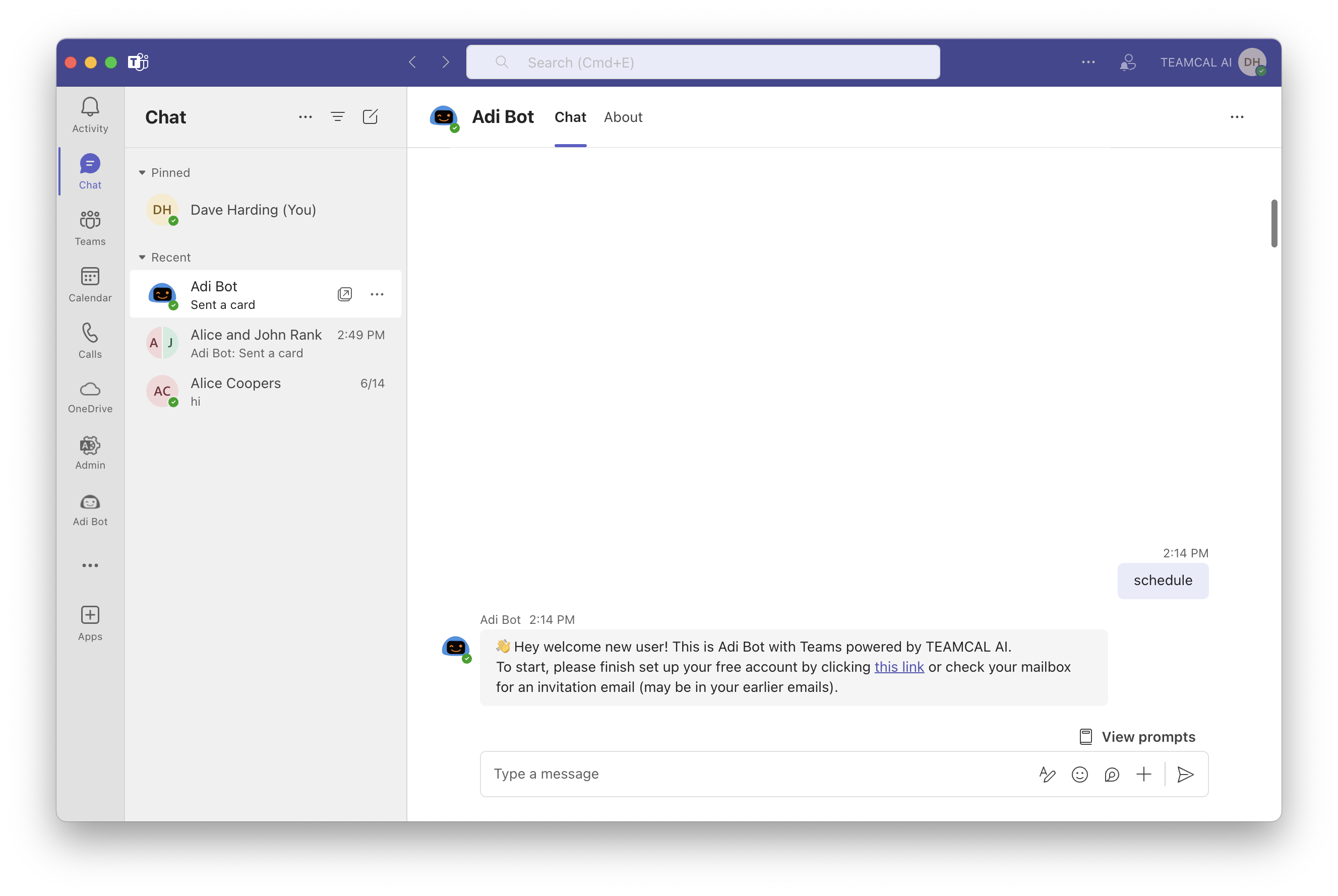
3First Time User
You will need a free ANCI account to see the true magic of Adi Bot. Don’t worry, we’ll take care of it for you. Just simply follow the link to finish your account setup.
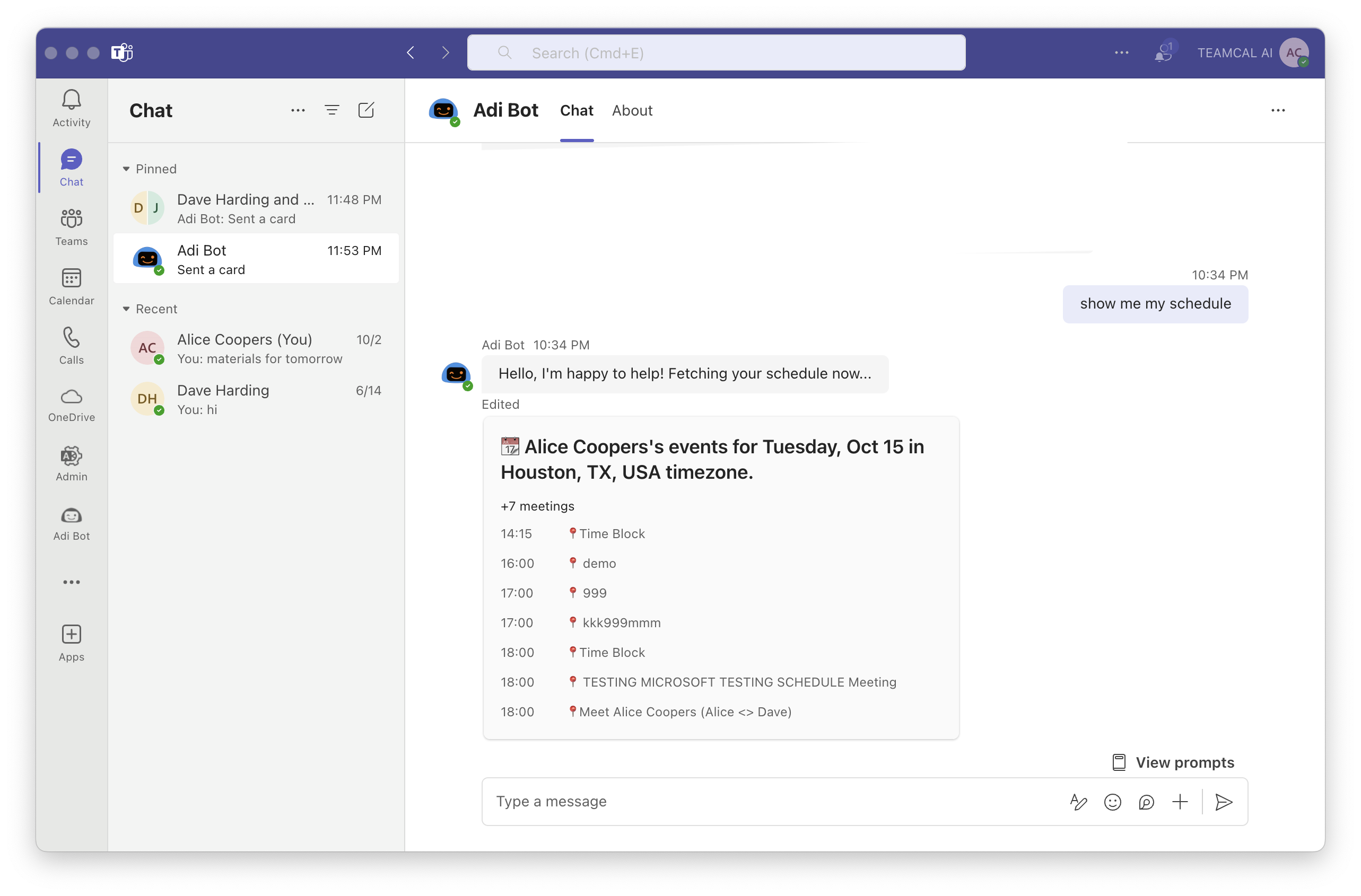
4Show your Schedule
Once your account is setup at ANCI, Now show you your schedule should work like a charm.
Free Install from Microsoft Market place Install here. Check the Adi for Microsoft Teams.
5Say Hello to Adi
Use ‘hi’ or ‘help’ command to get a general view of how Adi works.
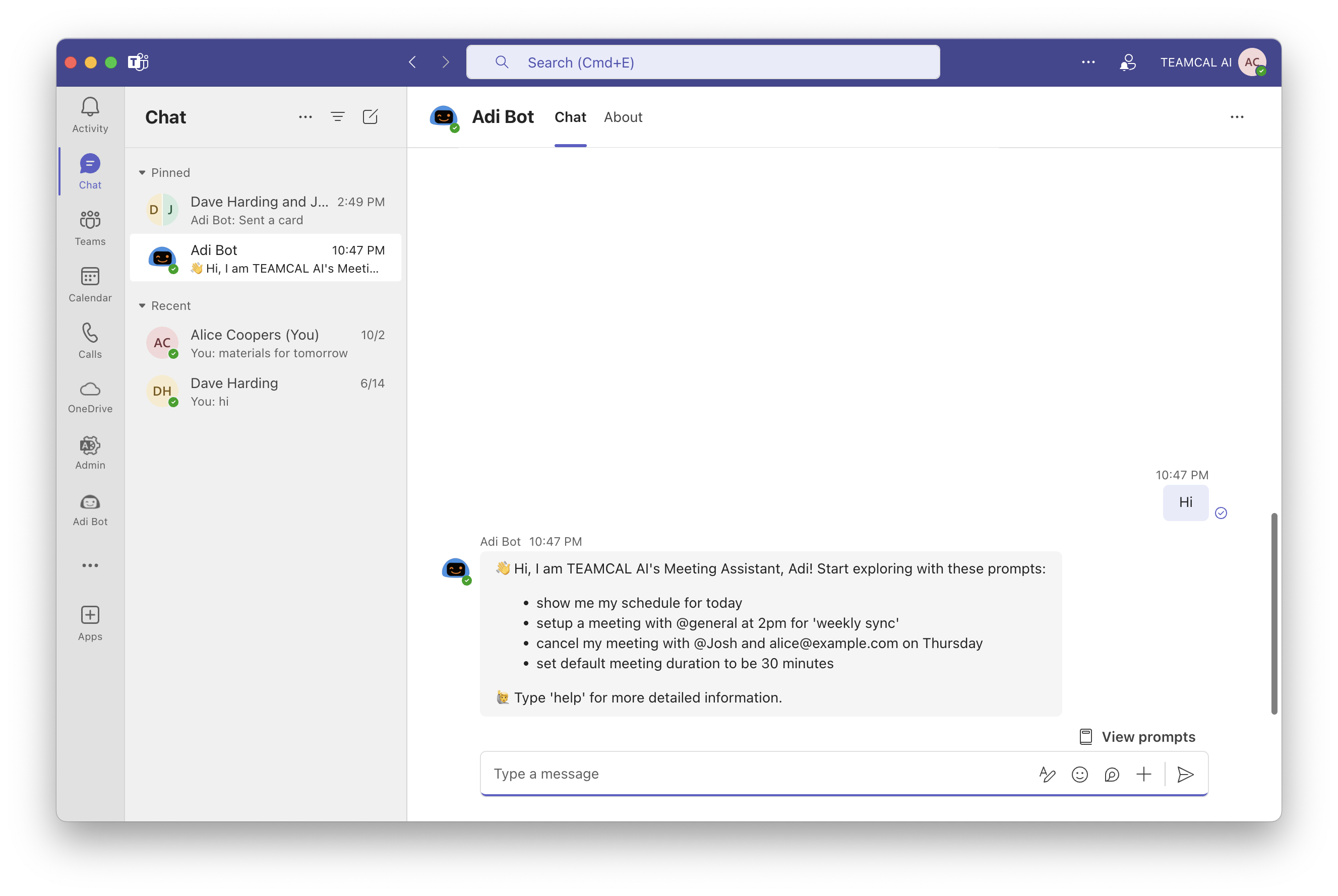
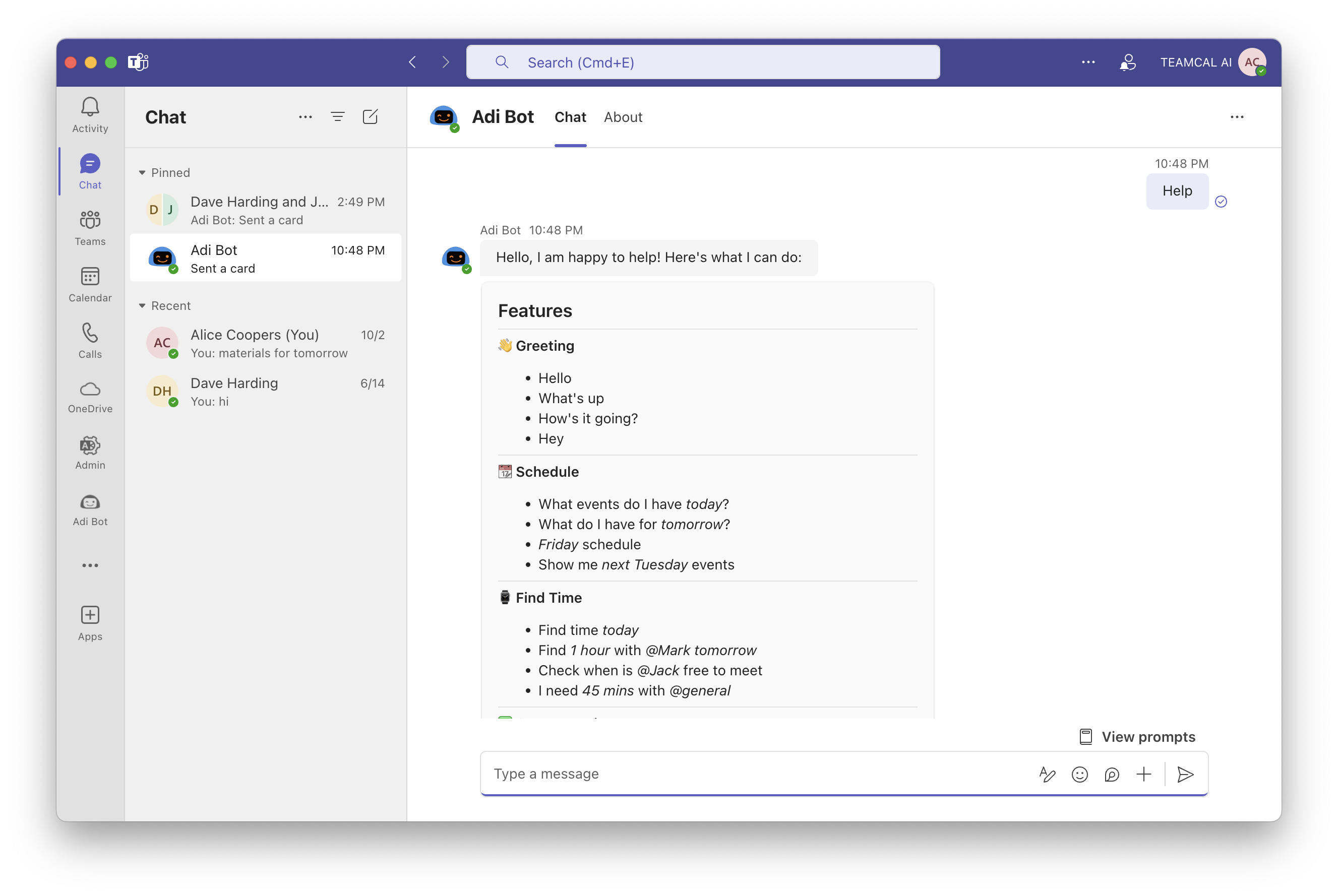
6Type Help
If you want to see a list of commands, Adi supports just type "Help".
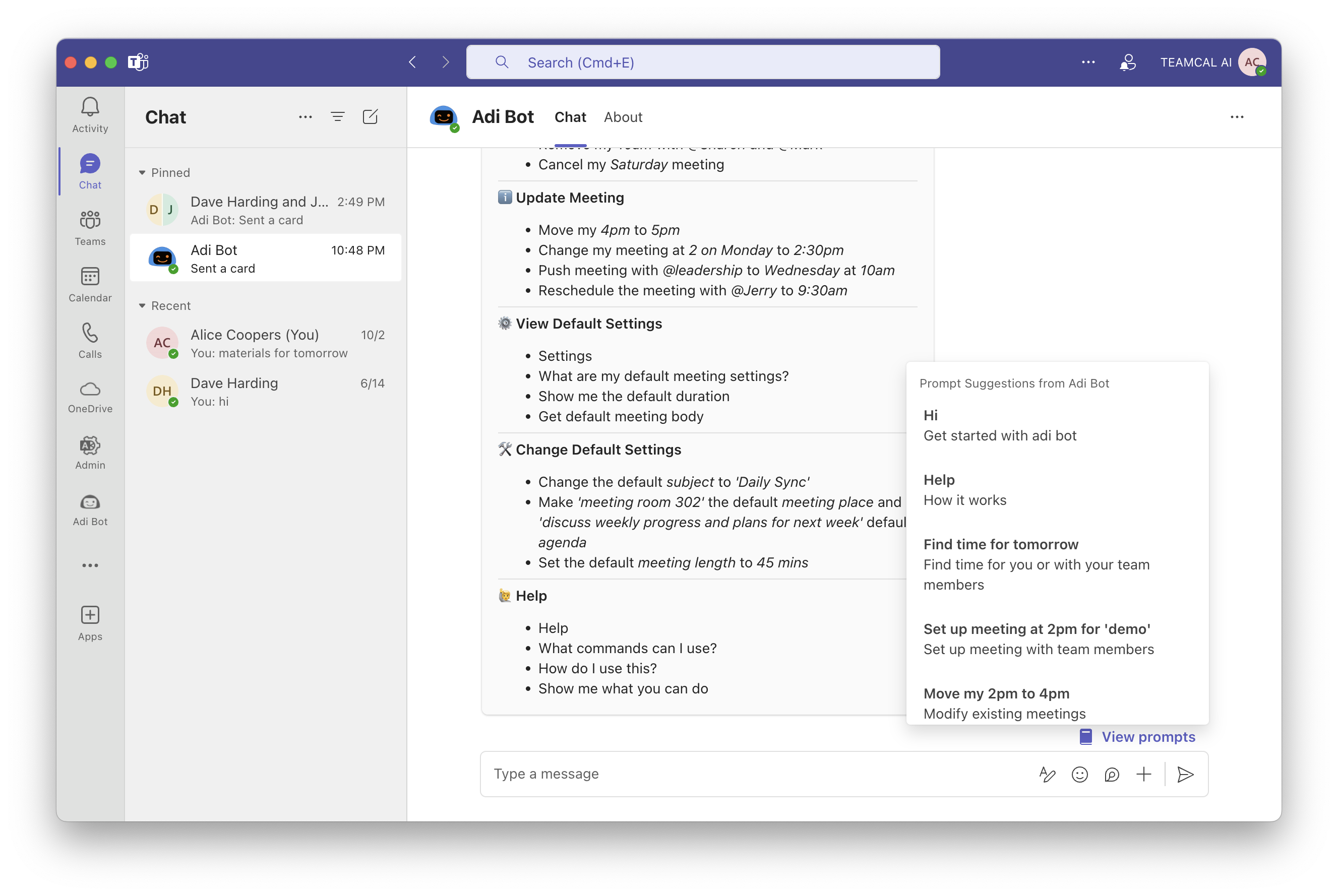
7Type any Request
Or use the prompts provided by us to quickly get started.
Free Install from Microsoft Market place Install here. Check the Adi for Microsoft Teams.
8Working Scopes
Adi works in three scopes: your personal conversation with Adi Bot, in your group chat and also your public channels.
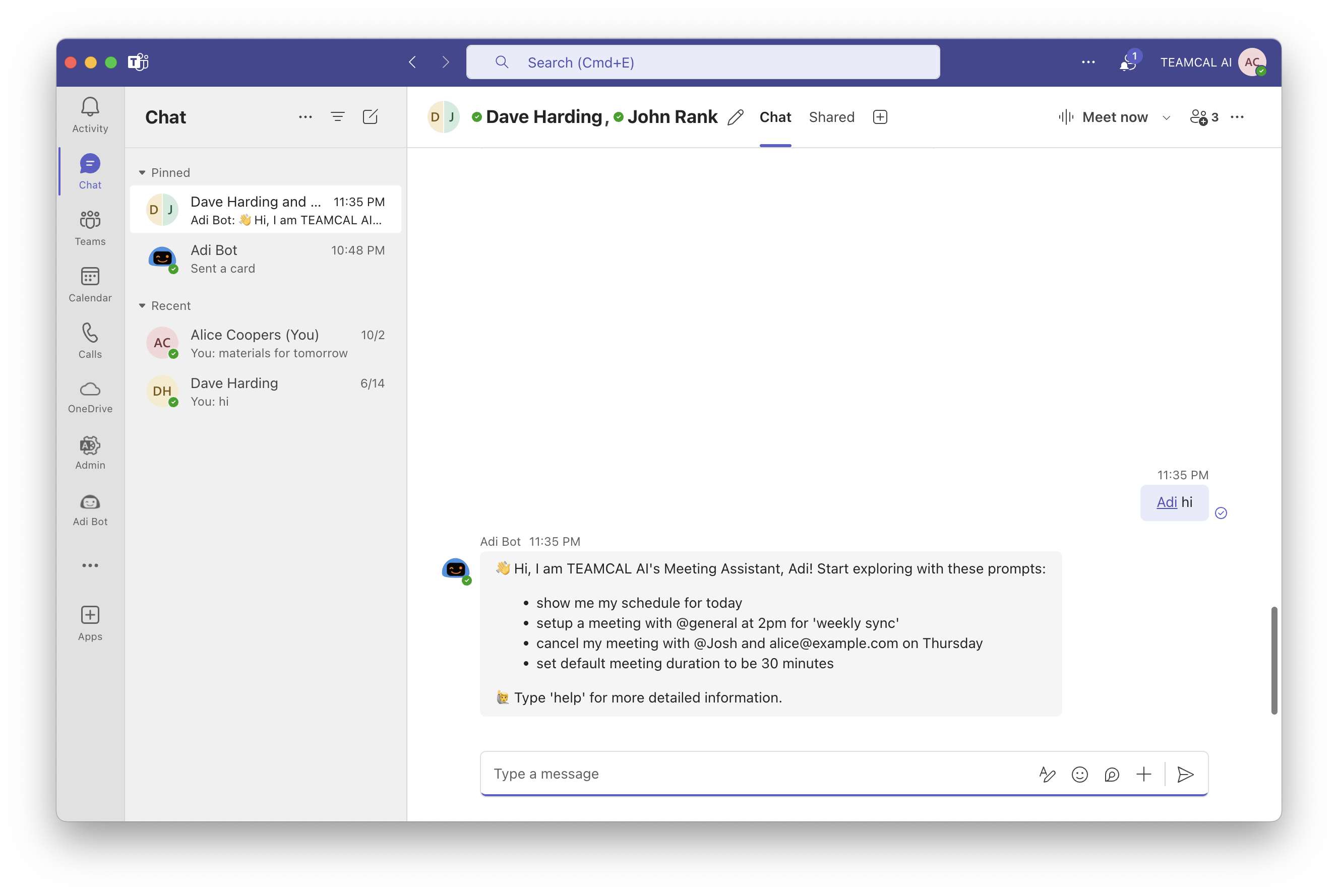
9Adi, Schedule Meeting
Remember to tag Adi Bot when you are trying to talk to him in group chat and channels.
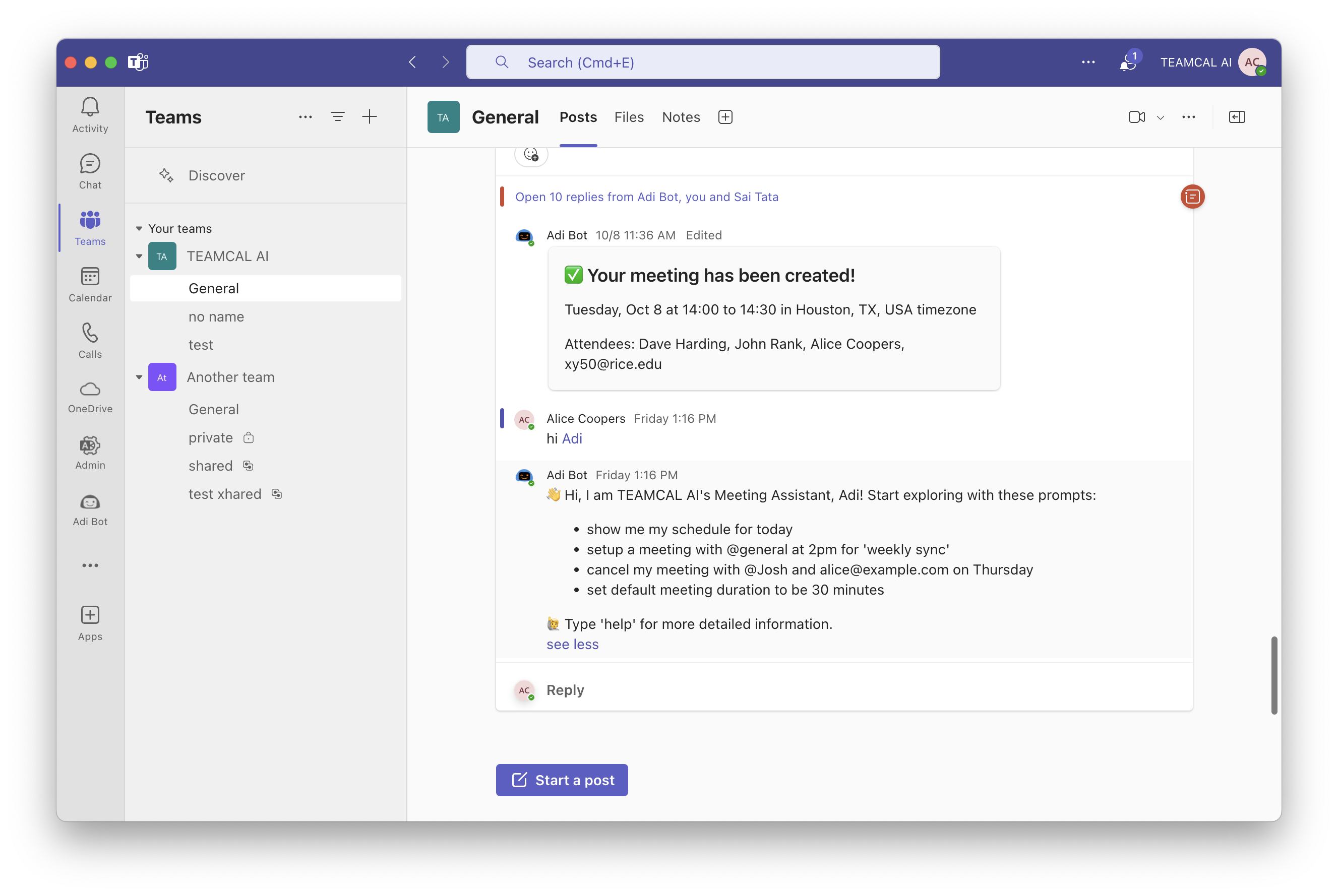
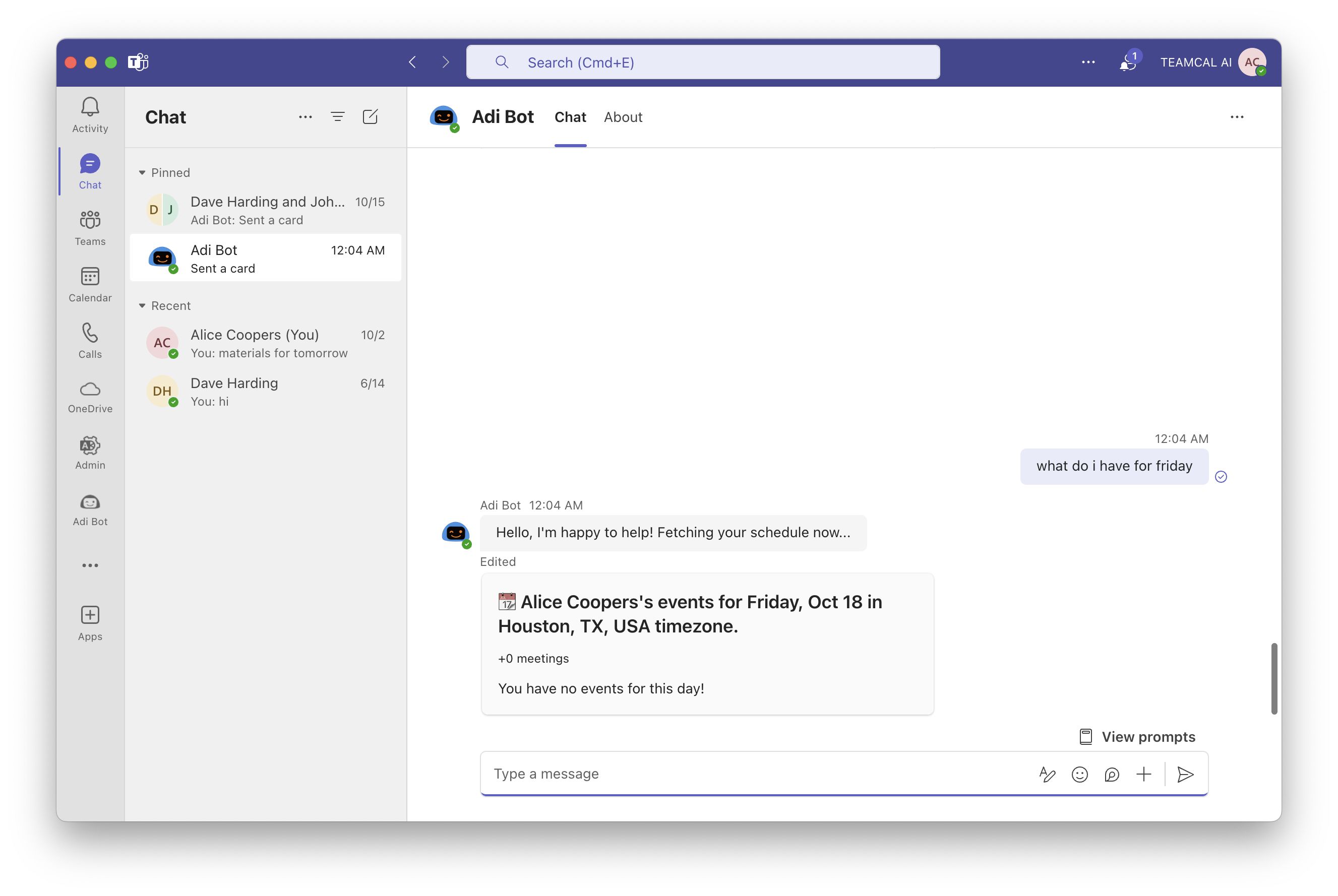
10Feature - Show Schedule
Show what you have from your synced calendar. Feel free to check your schedule in next two weeks (Show schedule for Thursday or say Show Schedule for next thursday).
Free Install from Microsoft Market place Install here. Check the Adi for Microsoft Teams.
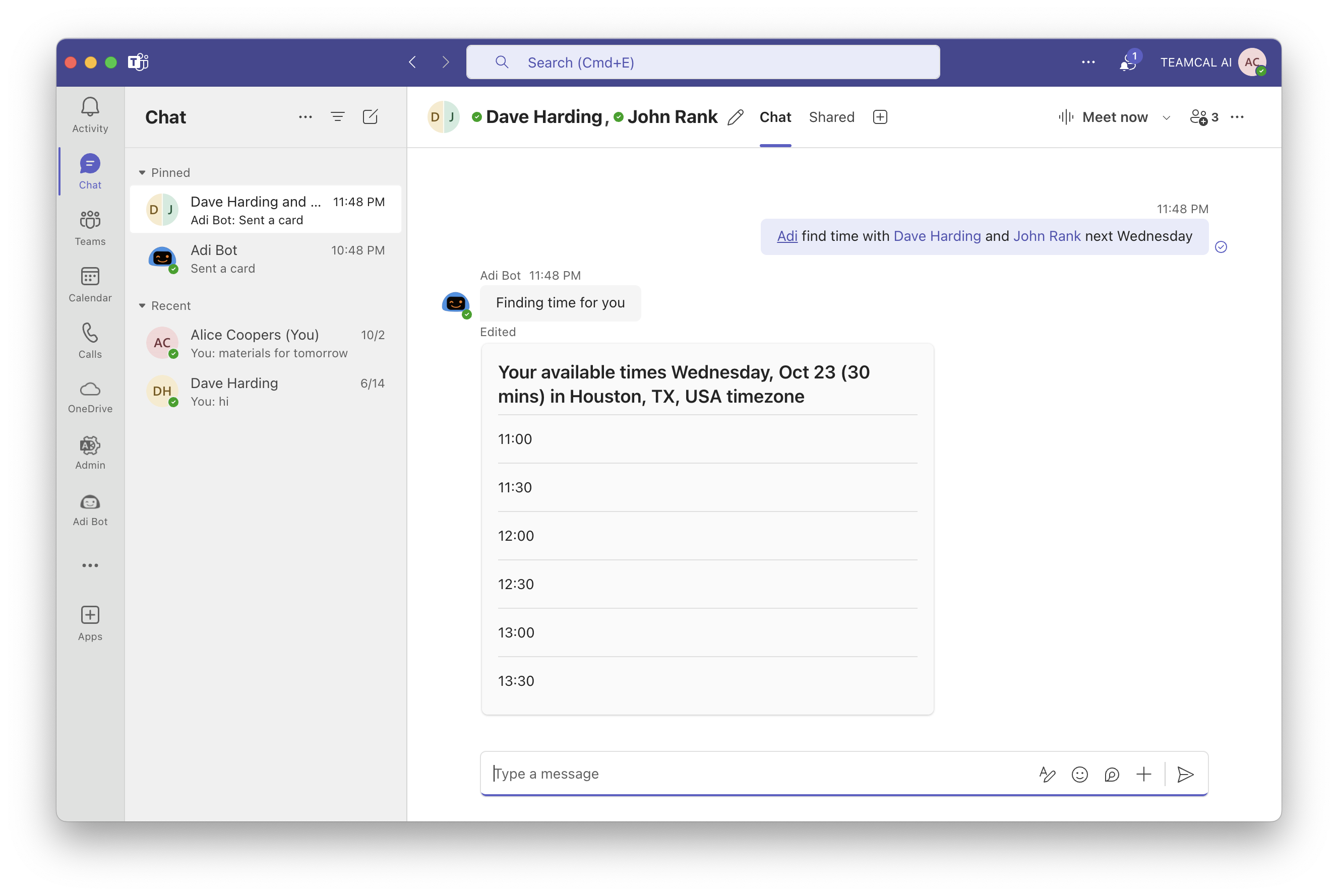
11Feature - Find Time
Find available times of any day in the next two weeks with other team members.
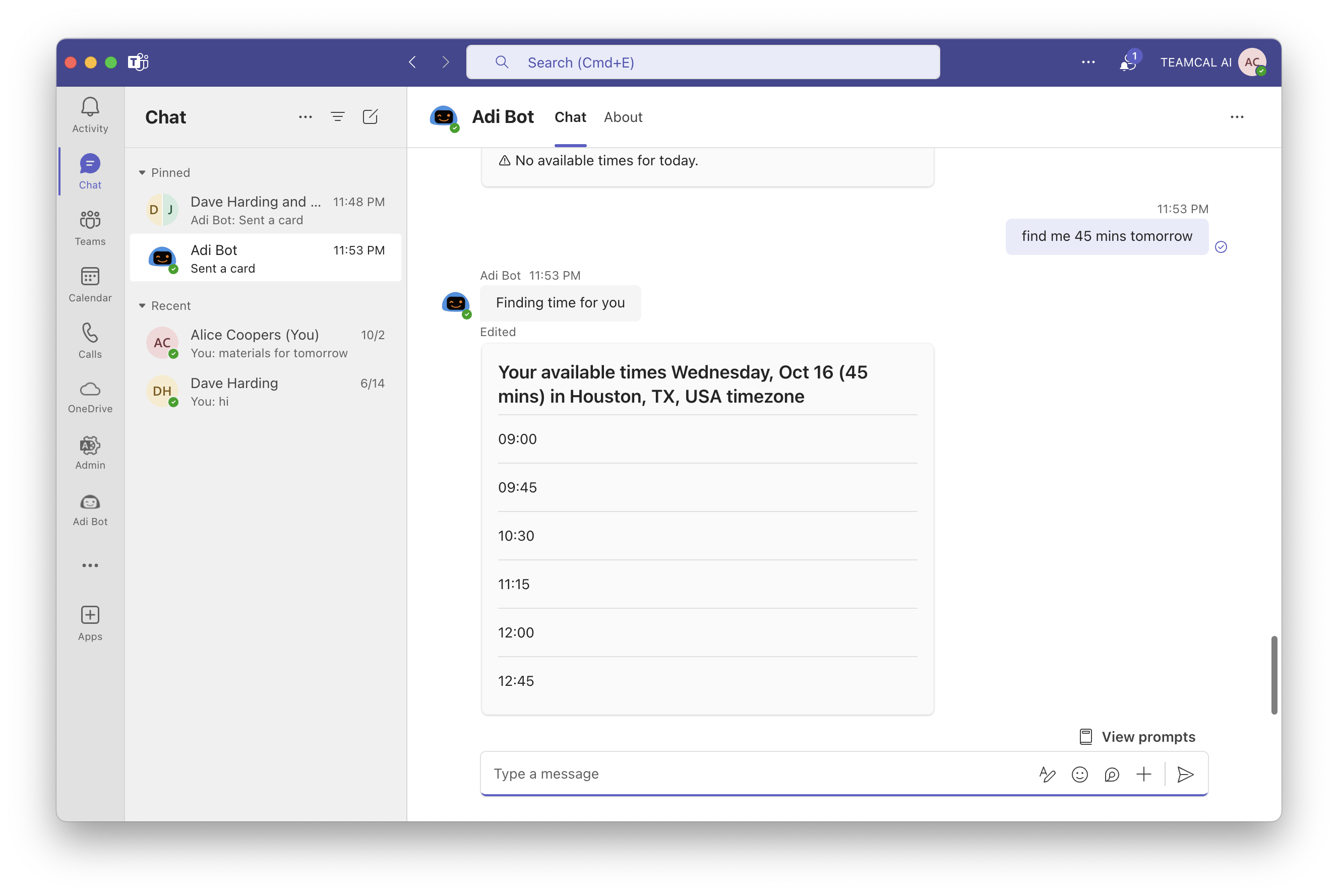
12Change Duration in Find Time
You can find 15/30/45/60 mins by specifying it. Adi will find you 30 mins by default or find you the available time period according to the duration in your default meeting settings. We’ll talk about default settings in a minute.
13Feature - Set Up Meeting
Adi Bot will use your default meeting template to set up meeting for you if no information specified.
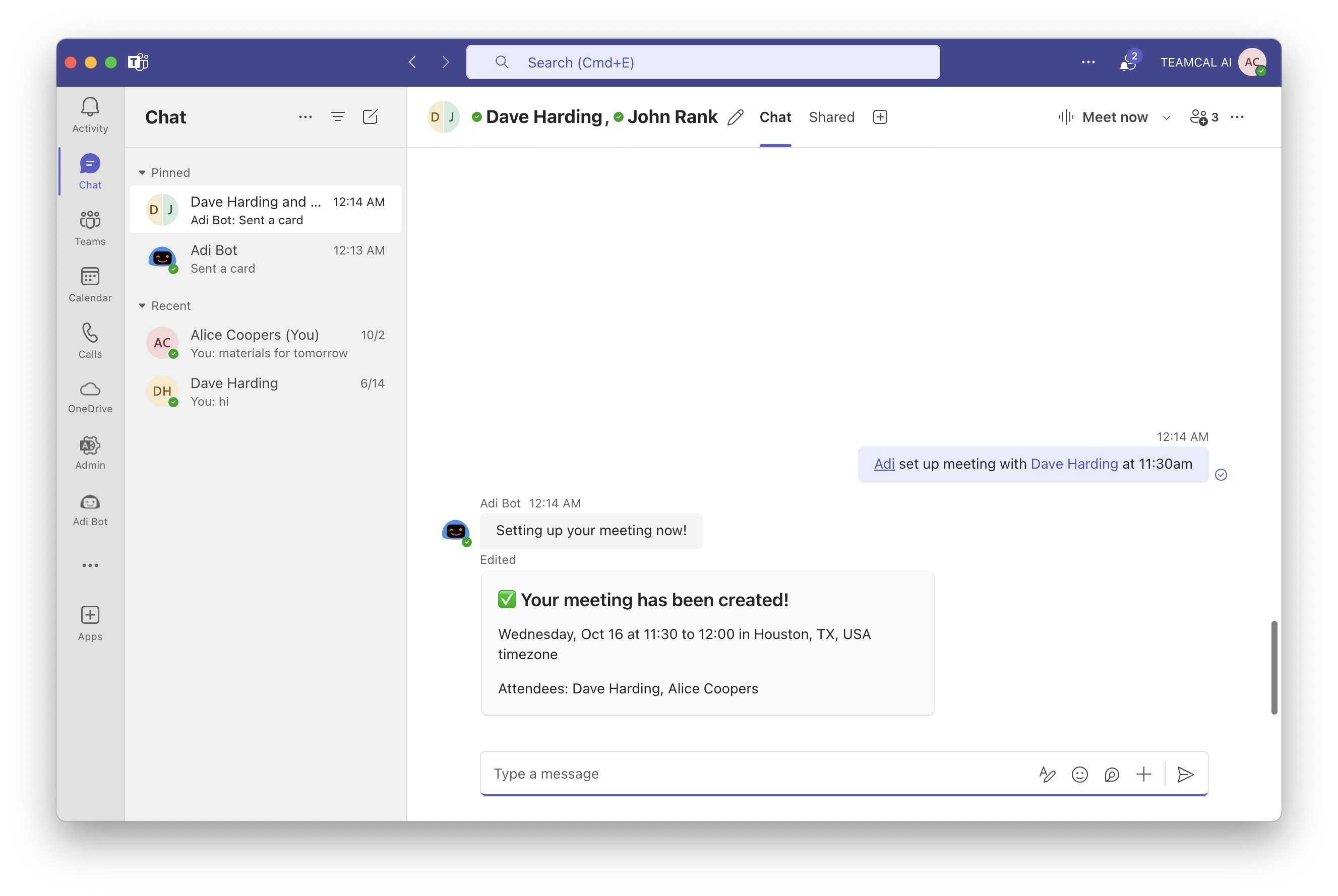
Free Install from Microsoft Market place Install here. Check the Adi for Microsoft Teams.
14Feature - Setup Meeting
Adi will set up meeting at all attendees’ earliest available time if you don’t specify it.
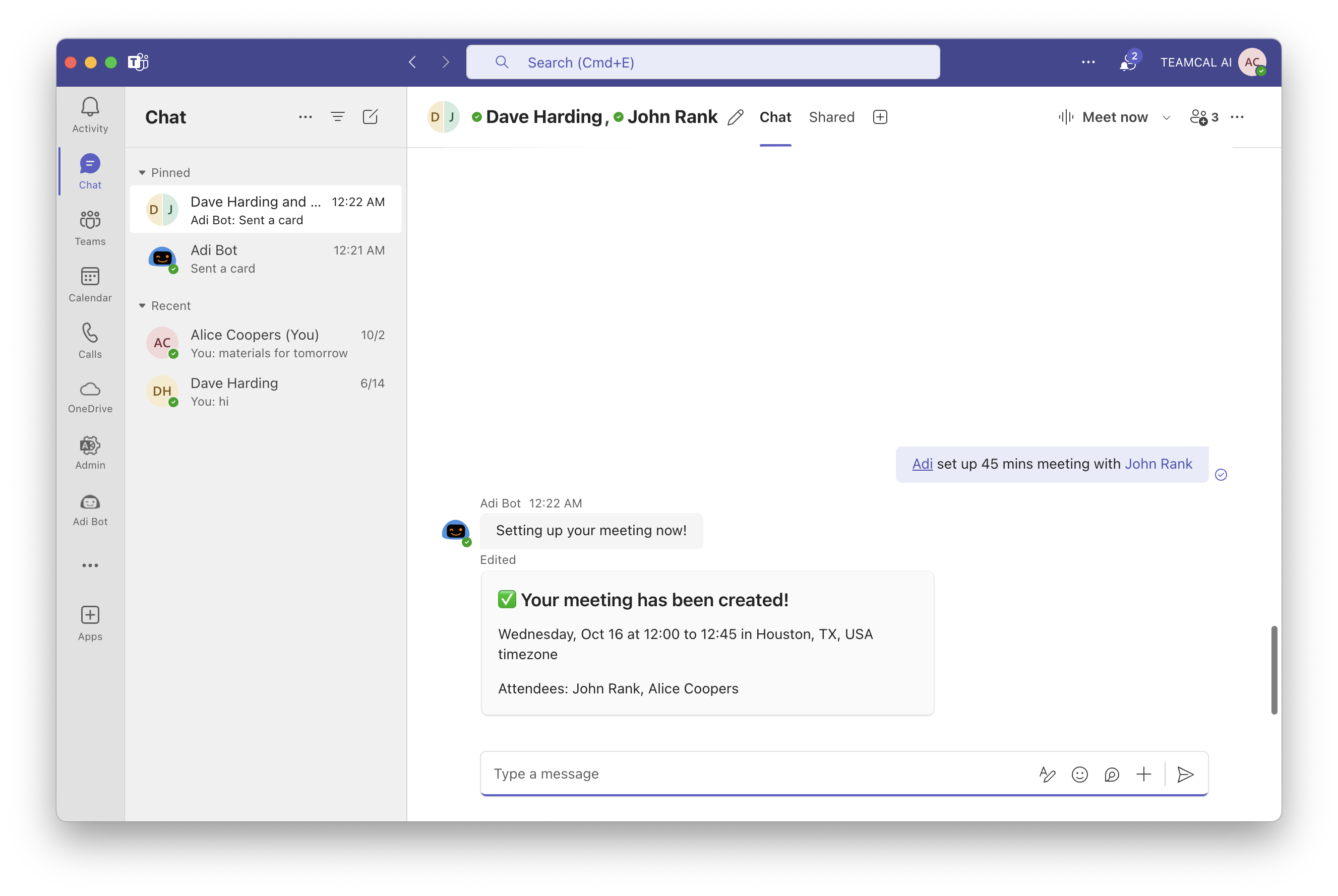
15Setup Meeting with Externals
What about people not in your group? Just use their emails to add them to the meeting.
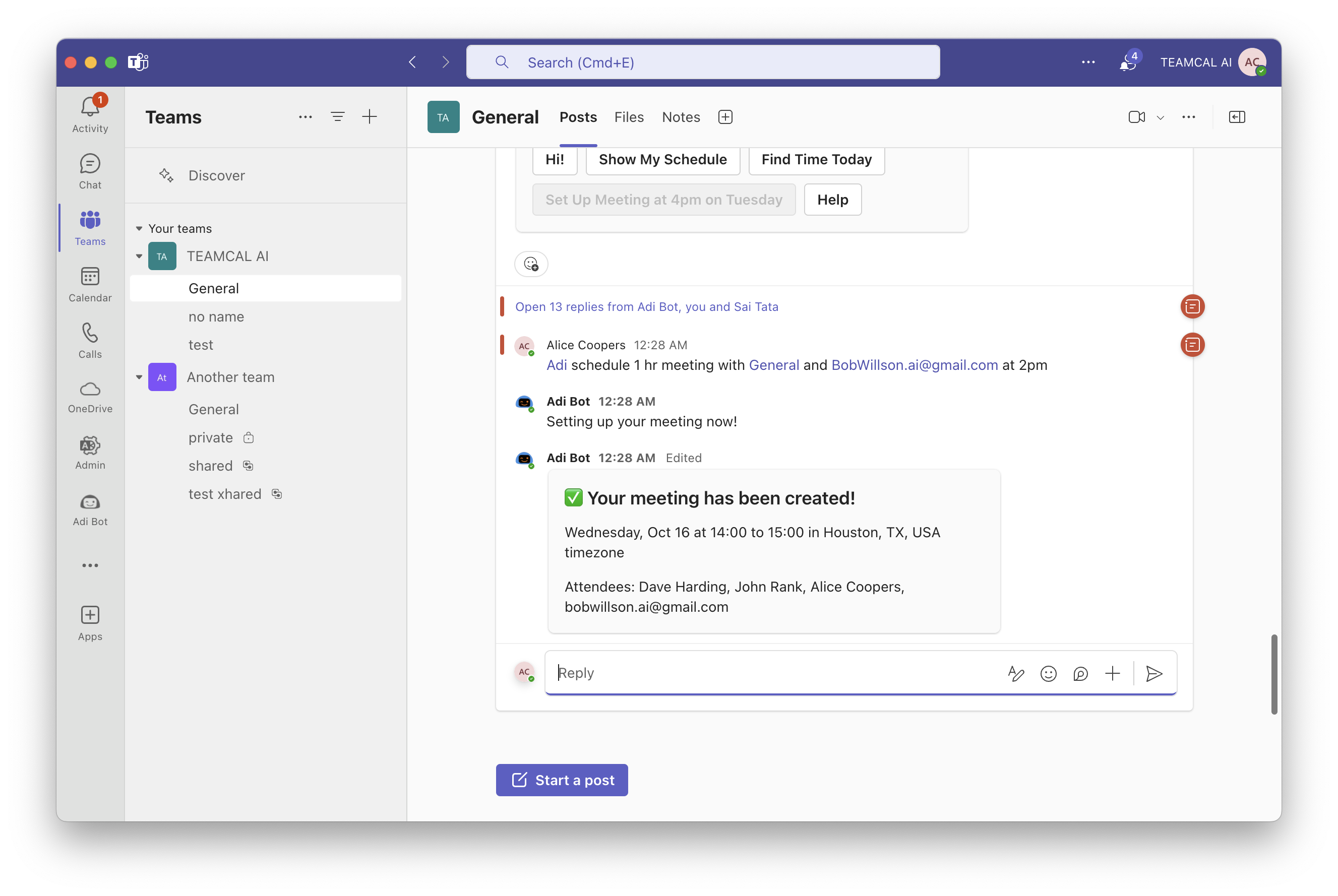
16Custom subject - Set Up Meeting
You can also add custom subjects to the meetings
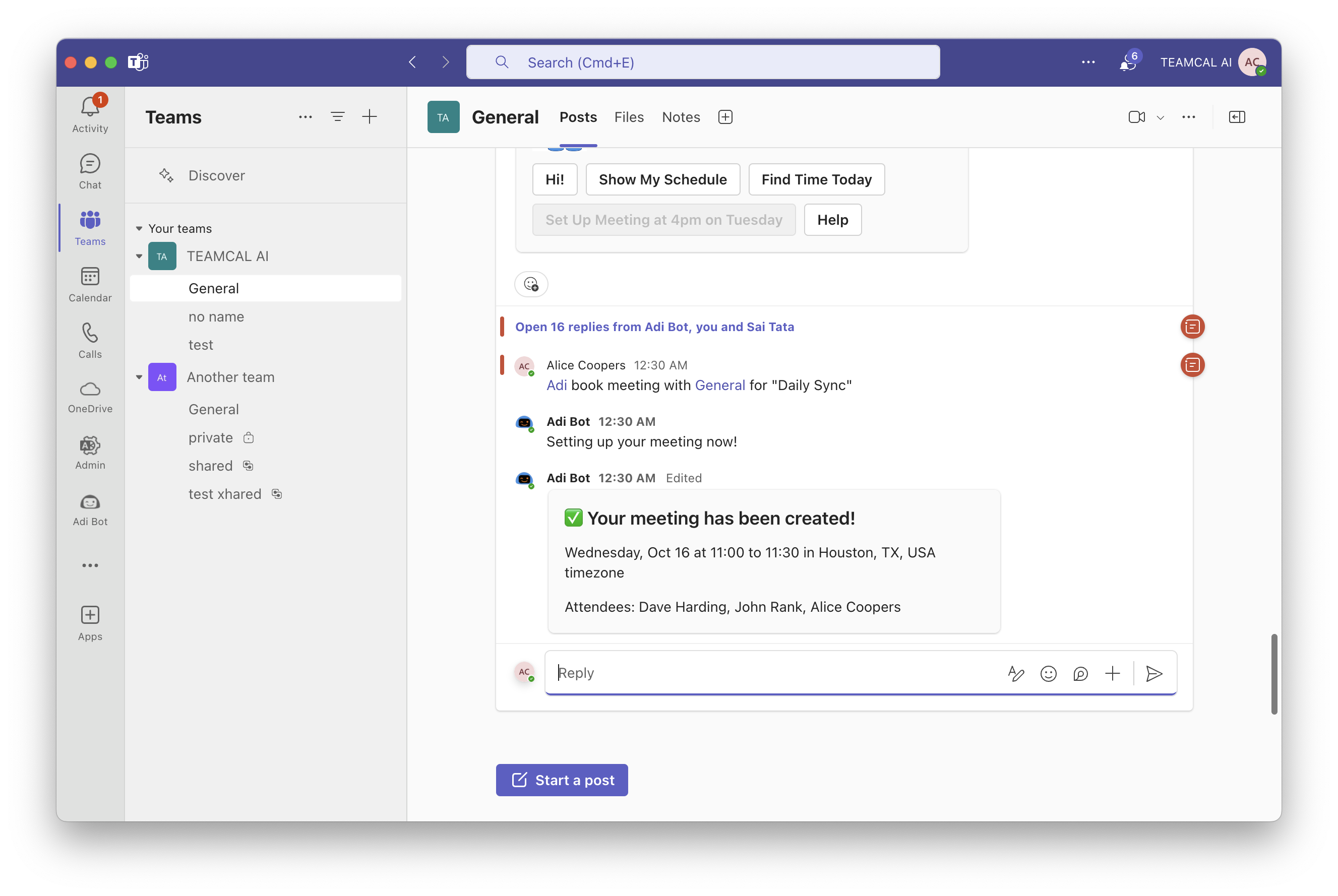
Free Install from Microsoft Market place Install here. Check the Adi for Microsoft Teams.
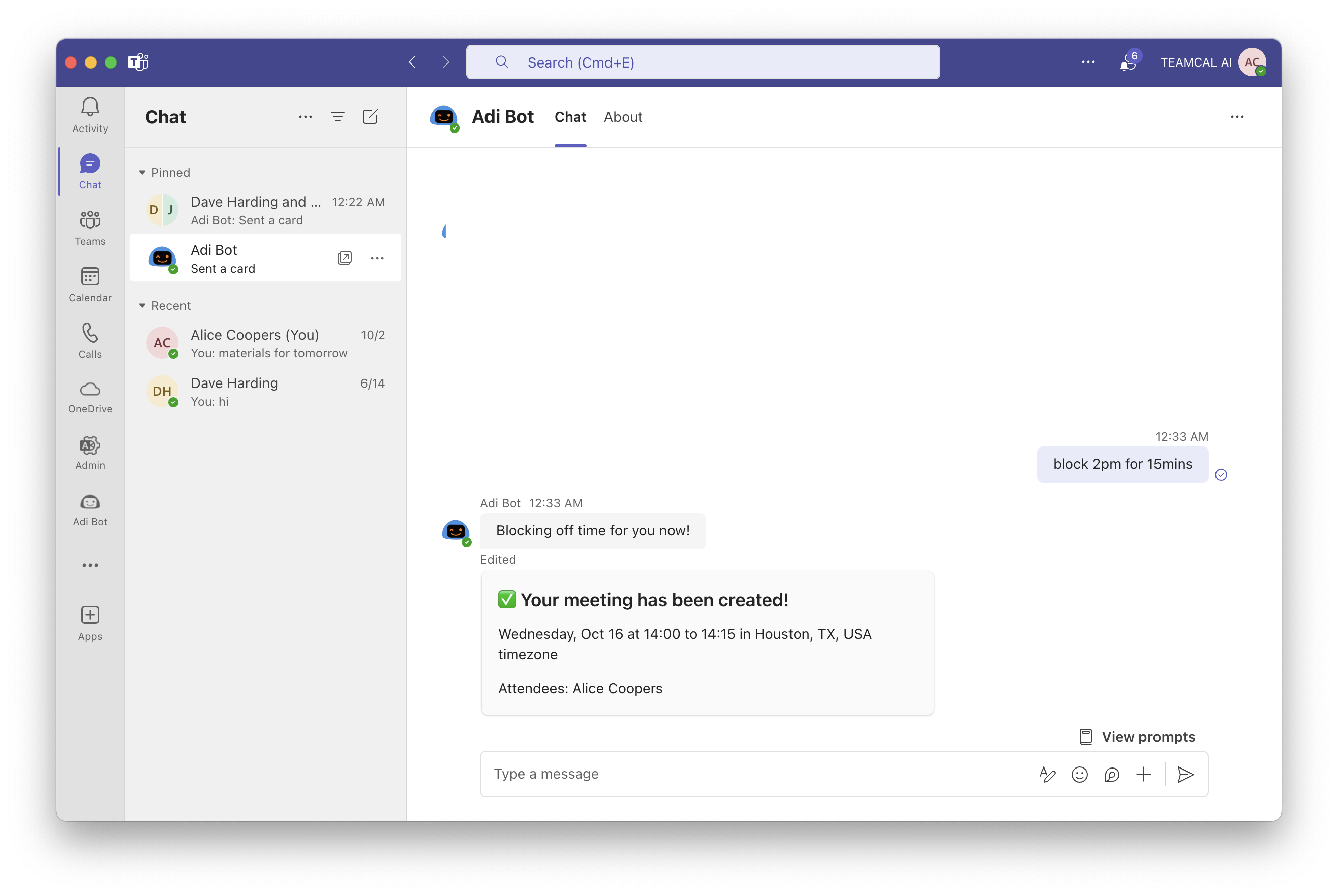
17Feature - Block Time
Need some undisturbed time for yourself? Try block time. Simply put “block time”, you won’t be available to others for the time and duration you need.
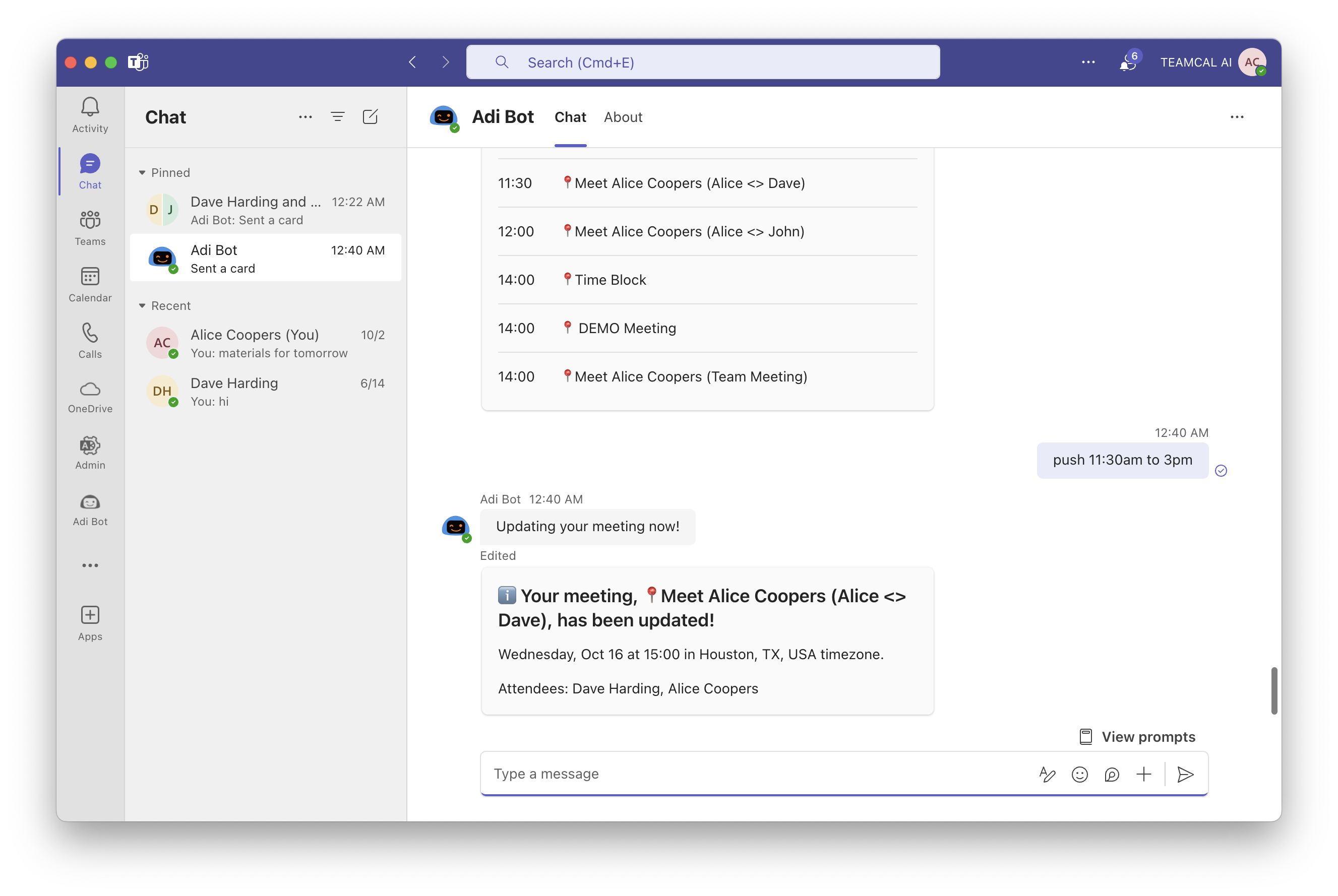
18Feature - Update Meeting
Use meeting time or attendees or both of them to let Adi know which one you are aiming for.
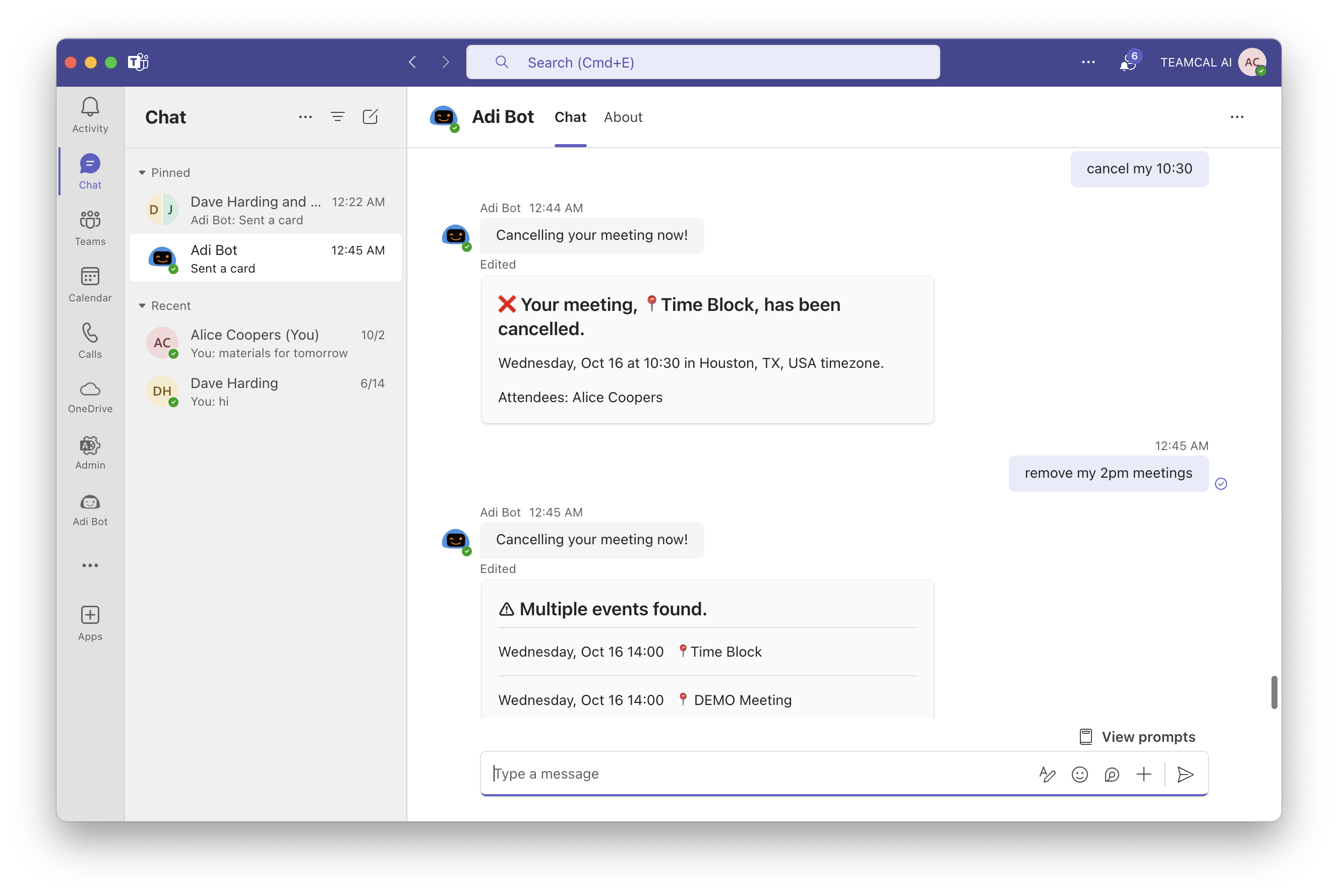
19Feature - Cancel Meeting
Works very much like reschedule meeting. You need to be more specific if there are multiple meetings at the same time.
Free Install from Microsoft Market place Install here. Check the Adi for Microsoft Teams.
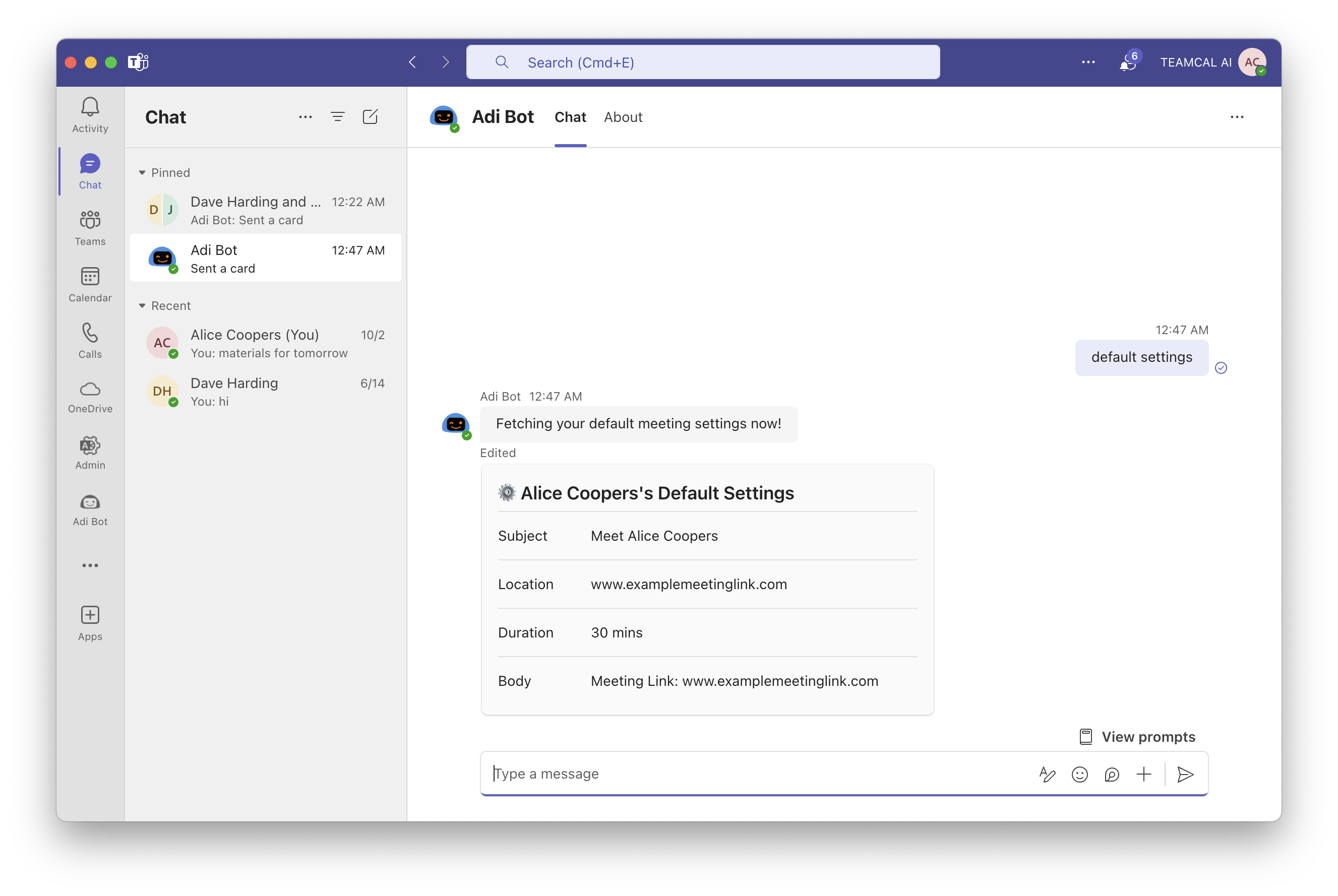
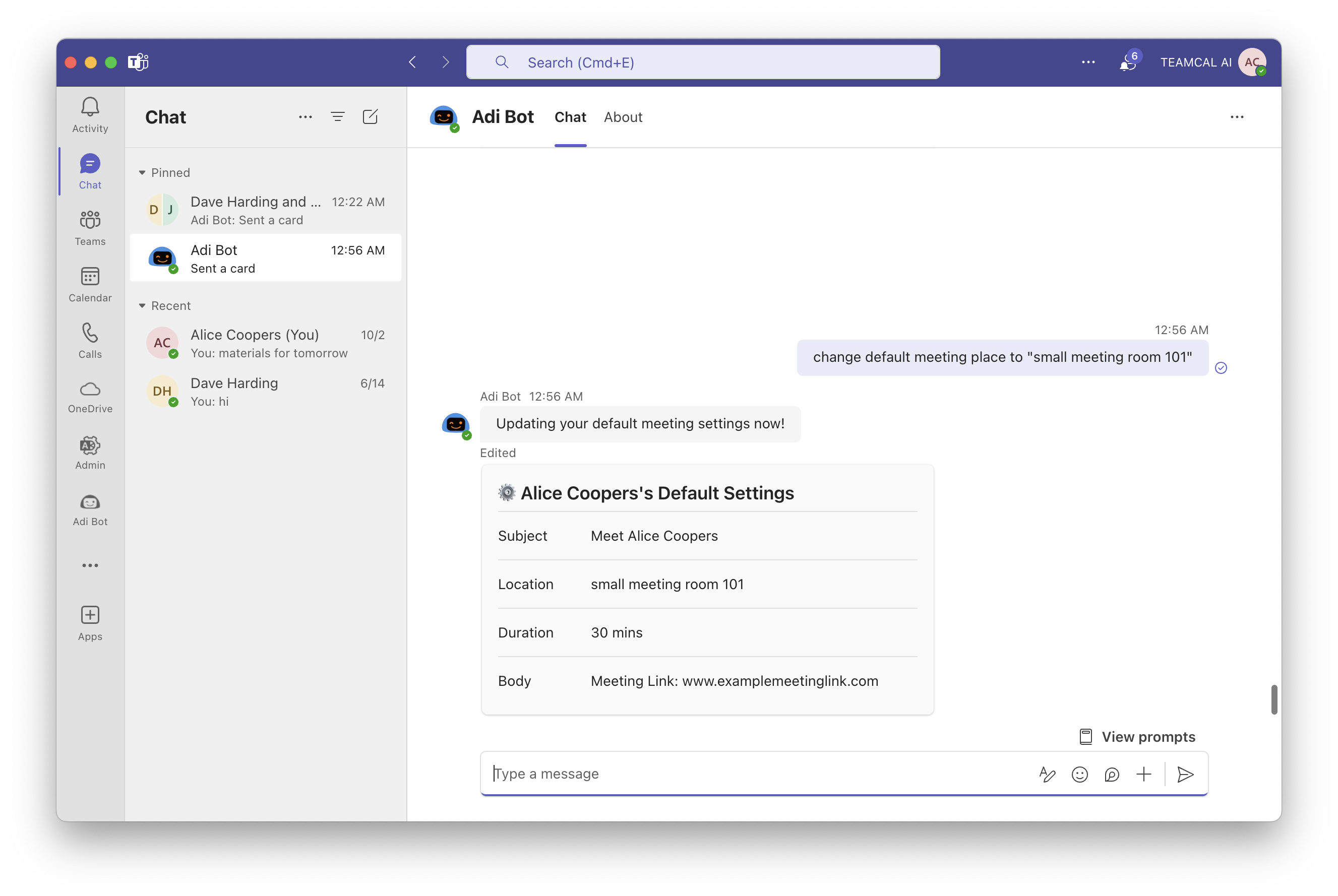
20View Default Meeting Settings
Your default meeting template will be generated automatically when you register with ANCI. These information will be applied to the meetings when you trying to set up one.
21Feature - Change Default Settings
Feel free to make modifications to them through Adi Bot or your ANCI account.

What’s at Stake?
By not adopting AI-powered team scheduling software, businesses risk encountering challenges that can substantially affect their organization’s efficiency, productivity, and competitive edge. Here’s what’s at stake:
Without ANCI
- Decreased Efficiency
- Missed Opportunities for Optimization
- Increased Human Error
- Lower Employee Satisfaction
- Reduced Agility
- Inadequate Data-Driven Decision-Making
- Competitive Disadvantage
Get ANCI in 3 Steps
With our One-team-at-a-time Guarantee

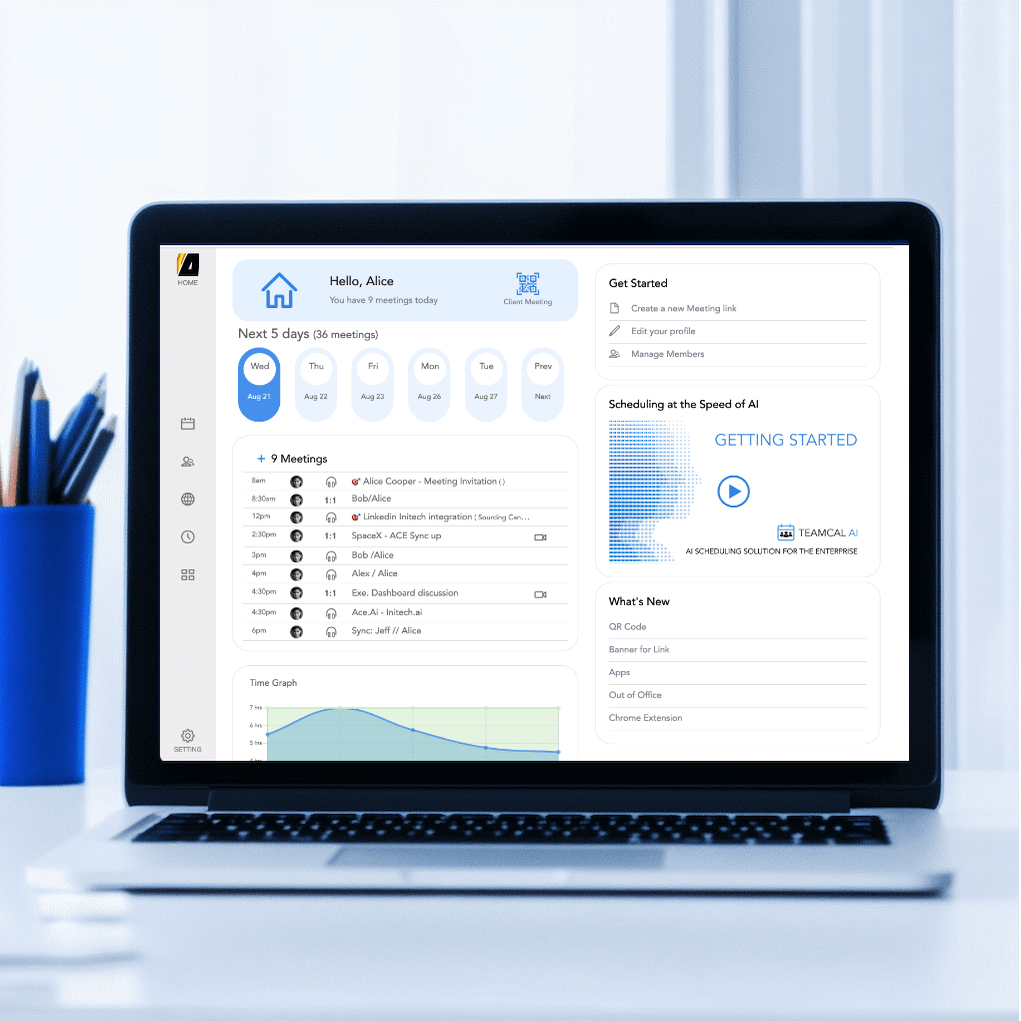


Learn about our One-team-at-a-time Guarantee.
Long-Term Impact
By investing in AI-powered scheduling today, you're not just streamlining operations—you're setting your business up for sustainable growth, team satisfaction, and increased productivity.
With ANCI
- Increased Productivity
- Better Work-Life Balance
- Reduced Burnout
- More Focus on Growth
- Competitive Edge
With AI-powered team scheduling software in place, their calendar is optimized automatically. Meetings align with priorities, the team is more collaborative, and time is used efficiently


14 Essential Elements of
Team Scheduling Software
Unlock Your Potential
Discover ANCI's game-changing features
Schedule a demo to see how it can save you over 10 hours a week!