Meet ANCI 3.0
TEAMCAL AI is now ANCI AI, an AI scheduling agent that works the way a great executive assistant does. It finds time with anyone, emails people outside your company, books when they reply, and never acts without your yes.

Schedule with people outside your company
ANCI emails them, handles the back-and-forth, and books when they reply.
2Find time with anyone
Every calendar, every working day, every time zone, all checked together.
3Schedule for your executive
Book, move and cancel on a calendar shared with you, in their name.
4Change anything by chat
Move, cancel, swap, add people, add an agenda, and set up meetings that repeat.
5Nothing happens without your yes
ANCI shows you exactly what it will do, then waits for your OK.
6A new name and a simpler app
TEAMCAL AI is now ANCI AI, with password-free sign-in and a six-item menu.
Schedule with people outside your company
Clients, candidates, vendors, investors. ANCI can’t see their calendars, so it does what a good assistant does: it writes to them, offers times that work for your side, reads the reply and books the meeting. You see every step in the chat.

ANCI writes the email for you
A short, polite note that introduces you (with the title and company you set), says what the meeting is about and where it is, and lists a few times your side is free, numbered so a guest can just reply “2”.
It reads the reply, whatever they write
“The second one works”, “Tuesday is better for me”, “can we make it an hour?” and “none of these work” are all understood. If a guest suggests a time, ANCI checks your calendar and asks you once. If they decline, ANCI offers new times without bothering you again.
Groups of guests
Three people from three companies? ANCI asks each which times work and books the one they all share. If nobody can make it, it tells you who couldn’t and why.
Their time zone, not just yours
Say “Tom in London” or “3pm Estela’s time”, and the times in the email are written on the guest’s own clock.
Quiet guests get a nudge
If a guest hasn’t replied after 3 days, and again after 7, ANCI asks you what to do: send a friendly reminder, book the best time anyway, or cancel the request.
Forward and forget
Got a meeting request in your inbox? Forward it to ANCI. It drafts the reply and shows it to you first. Nothing goes out until you approve.
Times stay held
A time ANCI has offered to one guest isn’t offered to anyone else while it waits for their answer, so two people can’t accept the same slot.
Moves and cancellations are explained
If a meeting with an outside guest has to move, ANCI asks them first. If it’s cancelled, they get a short note. Follow-ups stay in the same email thread.
From the assistant, not a robot
Assistants can send guest emails under their own name, signed “powered by ANCI AI”, so a guest knows exactly who they are dealing with.
Find time with anyone
A time is only offered if it’s free for everyone on the invite and falls inside everyone’s working day, on their own clock. ANCI checks each teammate’s free and busy times directly, not just your own view of their calendar.

A short menu of real options
Five to seven times spread over the next few days, mornings and afternoons mixed. Pick one by number, or say another time.
Ranges just work
“Tomorrow afternoon”, “next week” and “end of the day” are read as windows to search, not questions to ask back.
Clashes come with an alternative
If the time you asked for is taken, ANCI names the clash (“you already have Staff sync 2:30–3:30”) and offers the next free time. You can still book over it if you want to.
When nothing fits, it says why
ANCI tells you whose day ran out, then offers the nearest times just outside the window you asked for.
Both clocks, when it matters
“7pm Pacific” on a New York calendar shows both times. A time outside your own working hours gets a heads-up, but is never blocked.
Teams by name
“The sales team” invites the real members of the team from your Teams page.
Schedule for your executive
ANCI 3.0 is built for executive assistants. Tell ANCI whose calendars you manage, during sign-up or later in Settings, and it works on those calendars just like on your own.
Their calendar, their name
Bookings land on the executive’s shared calendar with the executive as the organiser. ANCI always says whose calendar it is using before anything is booked.
Every request works for them too
Showing, finding, moving and cancelling all work on their calendar.
Their rules, kept
An executive’s standing rules (“no meetings before 10”) are honoured when you book for them.
Change anything by chat
Name the meeting the way you’d tell a colleague: by time, title, person or place. ANCI finds it, shows you the whole meeting so you know it’s the right one, then makes the change.
Reschedule and update
Move it, rename it, change the place, make it longer, or add and drop people. The new time is re-checked for everyone first.
Cancel, with a note
Cancel one meeting, several, or a whole recurring series, and add a reason that goes to the attendees.
Swap two meetings
Each takes the other’s time, with one card and one yes.
Recurring meetings and time blocks
One series on your calendar, not a pile of copies. Say “every weekday at 10”, “every other Tuesday for 6 times” or “for the next three weeks”.
Several requests in one message
ANCI runs up to three steps from one message, one card per step. Phrases like “half an hour before” or “right after” another meeting are worked out for you.
Agendas
Add talking points to a meeting, before or after it’s booked. They appear on the invite.
Phone calls, Zoom, Teams and rooms
“Set up a phone call” puts your number in the location. “A new Zoom, not my personal room” is respected.
Standing rules
Tell ANCI once and it remembers: no meetings before 10, no meetings on Fridays, 15 minutes between meetings, or no more than four a day. “What are my rules?” lists them, and each one can be removed.
Your calendar, answered
“What’s on Thursday?”
A clean list of the day or week, with today split at the current time so you see what’s still ahead. Big meetings show two names and “and 31 others” instead of a wall of addresses.
“When am I free?”
Your open time, worked out from your actual calendar.
“What happened with Dan’s meeting?”
ANCI keeps track of every open request: who it’s waiting on, what was offered, and what was booked.
Talk instead of type
Hands-free voice: ask out loud, hear a short spoken answer, and the mic opens again for your next request. Tap to interrupt.
Nothing happens without your yes
An assistant you can’t trust isn’t an assistant. 3.0 is built around one rule: ANCI shows you exactly what it’s about to do, then waits.
A card before every booking, move or email
Who, when, where, whose calendar, and who is free. One reply books it, and picking an option counts as your yes.
It asks, it doesn’t guess
If two people are called John, ANCI asks which one you mean. If an address looks like a typo of someone you know, it checks with you. Every question starts with “So far I have:”, so you can catch a misread in the same reply.
One look before anything reaches a guest
Addresses and time zones are checked before an email goes to someone outside your company.
Your call, your settings
Prefer fewer questions? Say “don’t ask for confirmation” for teammates and ANCI will remember it. Warnings are still shown.
No duplicate bookings
Each booking is written once, on Google or Outlook, even if the connection drops partway through.
Out-of-office replies recognised
Auto-replies and machine mail are spotted, and they never count as a guest’s answer.
TEAMCAL AI is now ANCI AI
Same account, same team, same calendars. Your team’s address moves from company.teamcal.ai to company.anciai.com.
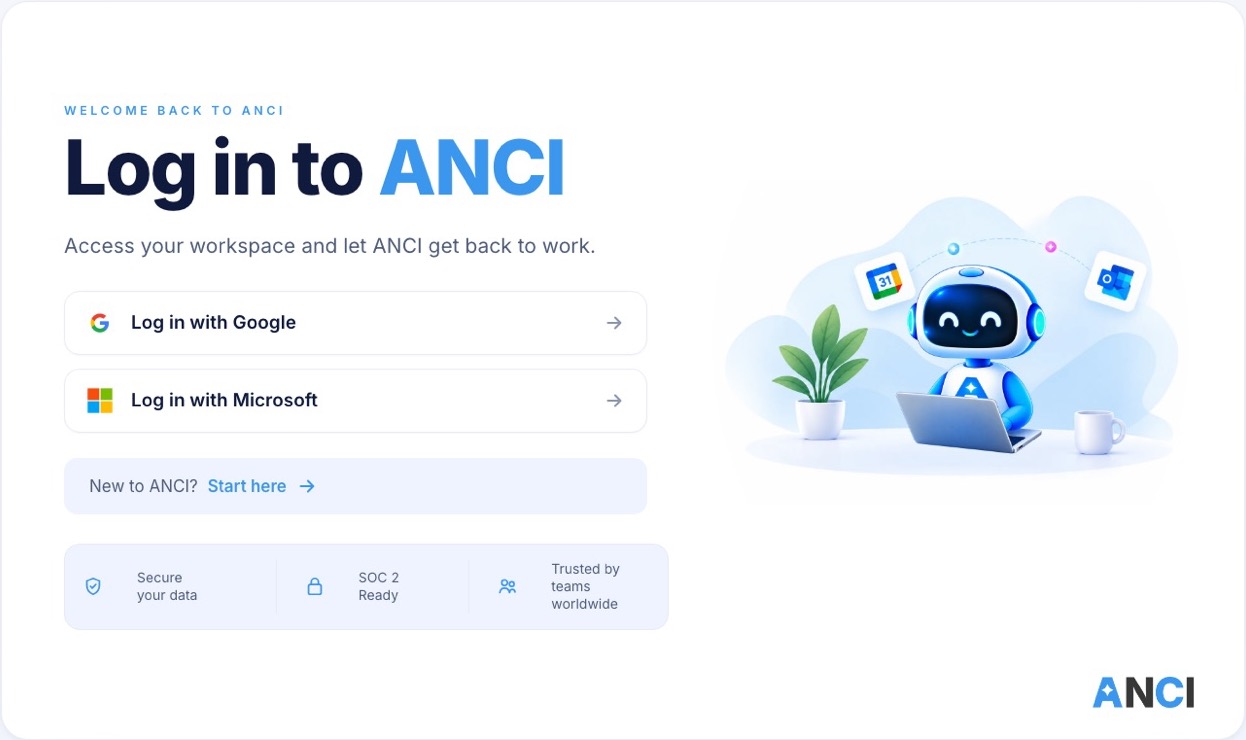
Sign in without a password
Use Google or Microsoft, the work account you already have. Your company’s two-step verification and sign-in rules now protect ANCI too.
A simpler menu
Six items, each always labelled: Chat, Meetings, Teams, Contacts, Booking and Settings.
A new Home
One big box (“What would you like me to schedule?”) with suggestions drawn from the people you actually meet. Your pending actions and recent activity sit right underneath.
Simple or Detailed
Simple shows a clean conversation. Detailed adds the full meeting tables and plans. A calendar panel sits beside the chat.
Live updates
When a guest replies, it shows up in your open chat as it arrives.
A guided first run
New to ANCI? It checks your settings with you, then walks you through a real booking with a teammate and a real email to a guest. Existing users can start it any time from “See how ANCI AI works”.
Setup in four short steps
Your name and role, your calendar (Google or Outlook), your people (imported from meetings you already have), and your preferences (hours, time zone, meeting length, buffer).
Your account carried over
- Your account, team and teammates
- Your Google or Outlook calendar connection
- Your contacts and external contacts
- Your booking links and team links
- Your working hours and meeting defaults
- Meetings already on your calendar
Good to know
Do I need to do anything?
No. Your account, team, contacts and calendar connection carried over. The next time you sign in, use Google or Microsoft.
Where do I sign in?
At your team’s own address, yourcompany.anciai.com. New to ANCI? Start at anciai.com.
What happened to my password?
You don’t need one any more. Sign in with the Google or Microsoft work account your calendar is on. The classic login is still available for now.
Will ANCI email my clients without asking?
No. Before anything goes to someone outside your company, ANCI shows you who it will write to and which times it will offer, and waits for your yes.
Do booking links still work?
Yes. Your booking links and team links are under Booking in the new menu.
Try it on your next meeting
See ANCI AI in action, then ask it to find 30 minutes with someone outside your company.